

티스토리 뷰

📄 PDF 워터마킹 완전 가이드: PyMuPDF Pro로 구현하는 텍스트/이미지 워터마크
워터마킹이 중요한 이유
PDF 워터마킹은 지적 재산권 보호, 브랜딩, 문서 보안 유지를 위해 필수적인 기술입니다.
기밀 비즈니스 문서에 'CONFIDENTIAL' 표시를 하거나, 보고서에 회사 로고를 삽입하거나, 창작물을 보호하기 위해 워터마크를 추가하는 경우 등 워터마크는 문서 보안에 빼놓을 수 없는 전문적이고 효과적인 수단입니다.
🐍 PyMuPDF Pro: 빠르고 강력한 PDF 워터마킹 도구
기능이 제한적인 다른 라이브러리 제품과 달리, PyMuPDF Pro는 다음과 같은 장점을 제공합니다:
- 빠른 처리 속도
- 텍스트 및 이미지 워터마크 모두 지원
- 광범위한 사용자 정의 옵션
- 대량 처리(batch processing)까지 지원
⚙️ 개발 환경 설정
PyMuPDF Pro 설치는 매우 간단합니다:
pip install pymupdfPyMuPDF Pro는 종속성이 거의 없으며 Windows, macOS, Linux 등 다양한 운영체제에서 작동합니다.
이미지 워터마크를 사용하려면, 추가적인 이미지 처리 기능을 위해 Pillow 라이브러리를 함께 설치하는 것이 좋습니다:
pip install pillow필요한 기본 import:
import pymupdf
import os
from datetime import datetime
🧠 워터마크의 종류 이해하기
PyMuPDF Pro에서는 다음 두 가지 워터마크를 지원합니다:
1. 텍스트 워터마크
- 저작권, 기밀 표시, 타임스탬프 등 텍스트 기반 정보에 적합
- 가볍고 커스터마이징이 쉬우며, 파일 용량 증가가 거의 없음
2. 이미지 워터마크
- 로고, 서명 등 시각적 요소 삽입에 적합
- 시각적 효과가 크지만 위치/크기/용량을 신중히 고려해야 함
📐 PyMuPDF Pro좌표계: 각 페이지의 좌측 상단이 (0, 0)
→ 정확한 위치 지정에 필수적으로 이해해야 하는 개념
✏️ 기본 텍스트 워터마크 예제
아래는 다양한 워터마크 삽입 예시를 샘플 코드와 함께 소개해드립니다
PDF 전체 페이지에 "CONFIDENTIAL"이라는 텍스트 워터마크를 삽입하는 경우:
|
1
2
3
4
5
6
7
8
9
10
11
12
13
14
15
16
17
18
19
20
21
22
23
24
25
26
27
28
29
30
31
|
import pymupdf
def add_text_watermark(input_pdf, output_pdf, watermark_text):
# Open the PDF document
doc = pymupdf.open(input_pdf)
for page_num in range(doc.page_count):
page = doc[page_num]
# Get page dimensions
page_rect = page.rect
# Calculate center position
x = page_rect.width / 2
y = page_rect.height / 2
# Insert text watermark
page.insert_text(
(x, y), # Position
watermark_text, # Text
fontsize=50,
color=(0.7, 0.7, 0.7), # Light gray
rotate=90 # Vertical orientation
)
# Save the watermarked PDF
doc.save(output_pdf)
doc.close()
# Usage
add_text_watermark("test.pdf", "output.pdf", "CONFIDENTIAL")
|
cs |
이 기본 함수는 PDF 문서 열기, 페이지 순회, 위치 계산, 그리고 사용자 지정 형식으로 텍스트 삽입하기와 같은 핵심 개념을 포함하고 있습니다.
🎯 고급 텍스트 워터마크: 다중 텍스트, 타임스탬프, 페이지 번호 포함
보다 고급 텍스트 워터마크를 만들기 위해,
폰트를 커스터마이징하고, 여러 줄 워터마크를 생성하거나, 동적인 콘텐츠를 추가할 수 있습니다.
|
1
2
3
4
5
6
7
8
9
10
11
12
13
14
15
16
17
18
19
20
21
22
23
24
25
26
27
28
29
30
31
32
33
34
35
36
37
38
39
40
41
42
43
44
45
46
47
48
49
|
import pymupdf
import os
from datetime import datetime
def advanced_text_watermark(input_pdf, output_pdf):
doc = pymupdf.open(input_pdf)
# Get current timestamp for dynamic watermark
timestamp = datetime.now().strftime("%Y-%m-%d %H:%M")
for page_num in range(doc.page_count):
page = doc[page_num]
page_rect = page.rect
# Main watermark text
main_text = "CONFIDENTIAL"
page.insert_text(
(page_rect.width - 100, page_rect.height - 10),
main_text,
fontsize=100,
color=(0.8, 0.2, 0.2), # Red color
rotate=90,
stroke_opacity = 0.5,
render_mode=1, # outline the font
fontname="Courier-Bold" # Bold font
)
# Timestamp watermark in corner
page.insert_text(
(20, 30), # top-left corner
f"Generated: {timestamp}",
fontsize=10,
color=(0.5, 0.5, 0.5),
rotate=0
)
# Page number watermark
page.insert_text(
(page_rect.width - 100, 30), # top-right corner
f"Page {page_num + 1} of {doc.page_count}",
fontsize=10,
color=(0.5, 0.5, 0.5),
rotate=0
)
doc.save(output_pdf)
doc.close()
advanced_text_watermark("test.pdf", "output.pdf")
|
cs |
🖼 이미지 워터마크 삽입
이미지 워터마크를 추가할 때는 약간 다른 방식이 필요합니다.
다음은 로고나 이미지를 PDF에 삽입하는 방법입니다:
|
1
2
3
4
5
6
7
8
9
10
11
12
13
14
15
16
17
18
19
20
21
22
23
24
25
26
27
28
29
30
31
32
33
34
|
import pymupdf
def add_image_watermark(input_pdf, output_pdf, watermark_image):
doc = pymupdf.open(input_pdf)
# create a pixmap from the image
pixmap = pymupdf.Pixmap(watermark_image)
for page_num in range(doc.page_count):
page = doc[page_num]
page_rect = page.rect
# Calculate scaling to fit image appropriately
scale_x = page_rect.width * 0.3 / pixmap.width # 30% of page width
scale_y = page_rect.height * 0.3 / pixmap.height # 30% of page height
scale = min(scale_x, scale_y) # Maintain aspect ratio
# Calculate position (center of page)
img_width = pixmap.width * scale
img_height = pixmap.height * scale
x = (page_rect.width - img_width) / 2
y = (page_rect.height - img_height) / 2
# Define the rectangle where image will be placed
target_rect = pymupdf.Rect(x, y, x + img_width, y + img_height)
# Insert the pixmap image at the back of the page
page.insert_image(target_rect, pixmap=pixmap, overlay=False)
doc.save(output_pdf)
doc.close()
# Usage
add_image_watermark("test.pdf", "logo_watermarked.pdf", "logo.png")
|
cs |
📌 참고:워터마크 이미지에 투명도를 적용하고 싶다면,
- Pillow 라이브러리를 사용해 이미지를 사전 처리하거나,
- **PNG 이미지 자체에 투명도(알파 채널)**를 포함시키는 것이 좋습니다.
또한, 워터마크를 insert_image로 삽입할 때
→ overlay=False 옵션을 설정하면,
이미지가 페이지의 다른 모든 내용 뒤쪽(배경)에 삽입됩니다.
📐 위치 전략 및 레이아웃 정리
중앙, 모서리 등 다양한 위치 전략을 함수형으로 구성해 삽입 가능:
|
1
2
3
4
5
6
7
8
9
10
11
12
13
14
15
16
17
18
19
20
21
22
23
24
25
26
27
28
29
30
31
32
33
34
35
36
37
38
39
40
41
|
import pymupdf
def position_watermarks(input_pdf, output_pdf):
doc = pymupdf.open(input_pdf)
positions = {
'center': lambda rect: (rect.width/2, rect.height/2),
'bottom_left': lambda rect: (50, rect.height - 50),
'bottom_right': lambda rect: (rect.width - 150, rect.height - 50),
'top_left': lambda rect: (50, 50),
'top_right': lambda rect: (rect.width - 150, 50)
}
for page_num in range(doc.page_count):
page = doc[page_num]
page_rect = page.rect
# Add large watermark at center
center_pos = positions['center'](page_rect)
page.insert_text(
center_pos,
"DRAFT",
fontsize=60,
color=(0.9, 0.0, 0.0),
rotate=0
)
# Add small copyright notice in bottom right
br_pos = positions['bottom_right'](page_rect)
page.insert_text(
br_pos,
"© 2025 Your Company",
fontsize=12,
color=(0.4, 0.4, 0.4),
rotate=0
)
doc.save(output_pdf)
doc.close()
position_watermarks("test.pdf", "output.pdf")
|
cs |
🎨 스타일링 예시: 반투명 배경 + 장식 요소
아래는 은은한 워터마크를 만드는 방법입니다:
|
1
2
3
4
5
6
7
8
9
10
11
12
13
14
15
16
17
18
19
20
21
22
23
24
25
26
27
28
29
30
31
32
33
34
35
36
37
38
39
40
41
42
43
44
45
46
47
|
import pymupdf
def styled_watermark(input_pdf, output_pdf, watermark_text):
doc = pymupdf.open(input_pdf)
for page_num in range(doc.page_count):
page = doc[page_num]
page_rect = page.rect
# Semi-transparent background rectangle
bg_rect = pymupdf.Rect(
page_rect.width/2 - 120,
page_rect.height/2 - 30,
page_rect.width/2 + 120,
page_rect.height/2 + 30
)
# Add background with border
page.draw_rect(bg_rect, color=(0.9, 0.9, 0.9), fill=(0.95, 0.95, 0.95), width=1)
# Add main watermark text
page.insert_text(
(page_rect.width/2 - 80, page_rect.height/2 + 5),
watermark_text,
fontsize=16,
color=(0.6, 0.6, 0.6)
)
# Add decorative elements
page.draw_line(
pymupdf.Point(page_rect.width/2 - 100, page_rect.height/2 - 15),
pymupdf.Point(page_rect.width/2 + 100, page_rect.height/2 - 15),
color=(0.7, 0.7, 0.7),
width=0.5
)
page.draw_line(
pymupdf.Point(page_rect.width/2 - 100, page_rect.height/2 + 15),
pymupdf.Point(page_rect.width/2 + 100, page_rect.height/2 + 15),
color=(0.7, 0.7, 0.7),
width=0.5
)
doc.save(output_pdf)
doc.close()
styled_watermark("test.pdf", "output.pdf", "SAMPLE DOCUMENT")
|
cs |
🔄 회전 텍스트 워터마크 삽입
많은 워터마크는 아래와 같이 문서 전체 페이지에 걸쳐 큰 텍스트를 대각선으로 삽입하는 방식으로 사용됩니다.
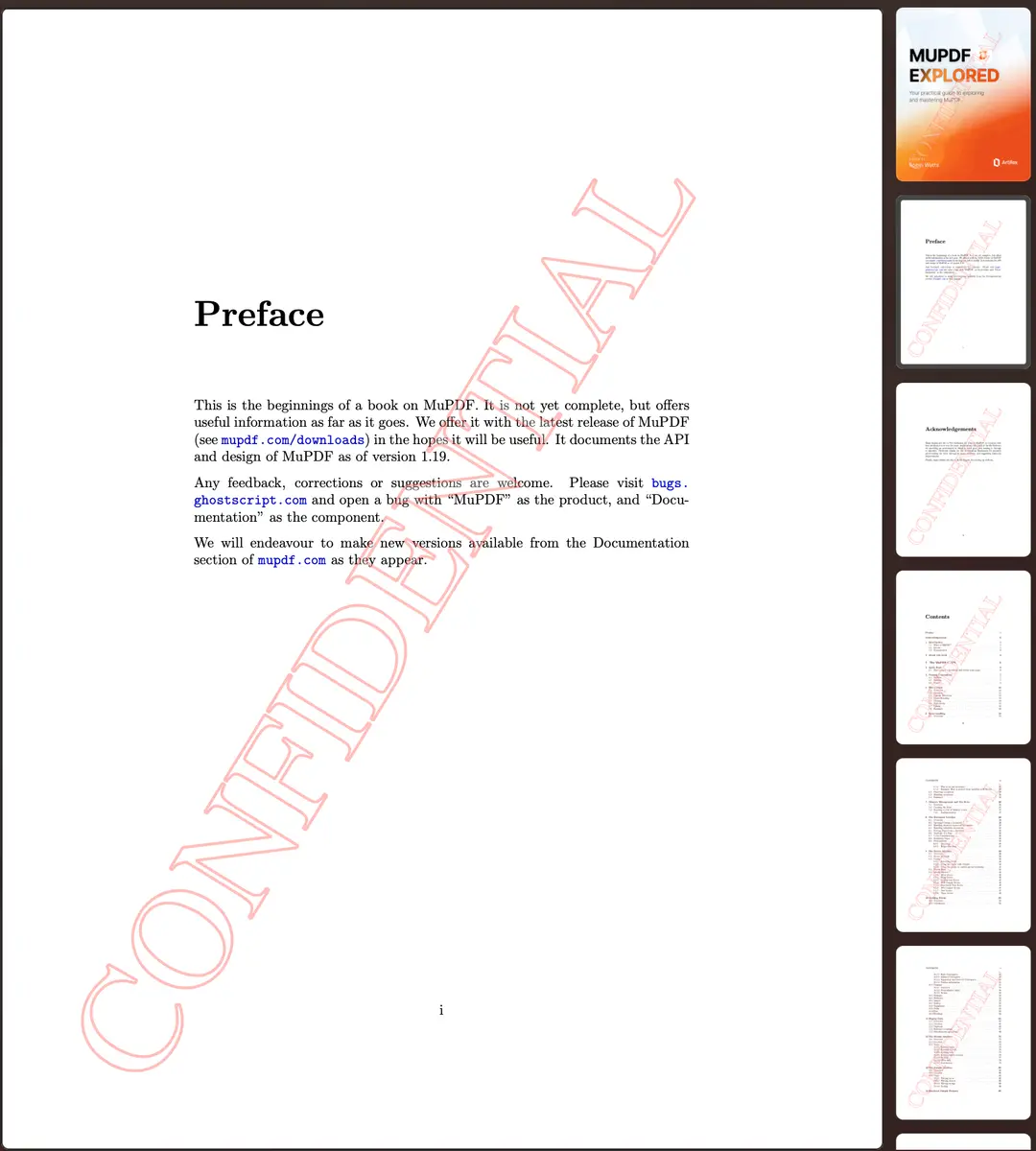
그렇다면 PyMuPDF Pro에서 텍스트 회전을 어떻게 적용할 수 있을까요?
기본적으로, 지정된 행렬(matrix)을 사용해 텍스트를 변형(morph)해야 하며,
이를 위해 간단한 수학 계산이 필요합니다.
|
1
2
3
4
5
6
7
8
9
10
11
12
13
14
15
16
17
18
19
20
21
22
23
24
25
26
27
28
29
30
31
32
33
34
35
36
37
38
39
40
41
42
43
44
45
46
47
48
49
50
51
52
53
54
55
56
57
58
59
60
61
|
import pymupdf
import math
def add_rotated_text_watermark(input_pdf, output_pdf, watermark_text):
# Open the PDF document
doc = pymupdf.open(input_pdf)
for page_num in range(doc.page_count):
page = doc[page_num]
# choose desired font
font = pymupdf.Font("tiro")
page.insert_font(fontname="myfont", fontbuffer=font.buffer)
font_size = 100
# choose 2 points to define a line along which to insert text
p1 = pymupdf.Point(100, 750)
p2 = pymupdf.Point(500, 100)
# compute angle of line
cos, sin = (p2 - p1).unit
theta = math.degrees(math.atan2(sin, cos))
# define matrix to rotate text
mat = pymupdf.Matrix(-theta)
# we want to insert this text along the line
text = watermark_text #f"This text inserted at {round(-theta,1)}°"
"""
Optional: Shrink / stretch text to fit along the line
---------------------------------------------------------------------
"""
# length of line
line_len = abs(p2 - p1)
text_len = font.text_length(text, fontsize=font_size)
# scale factor
scale = line_len / text_len
# scale matrix
scale_mat = pymupdf.Matrix(scale, scale)
# mat *= scale_mat # (un-)comment to see its effect
"""
---------------------------------------------------------------------
"""
page.insert_text(
p1,
text,
fontsize=font_size,
fontname="myfont",
fill_opacity=0.3,
stroke_opacity=0.3,
color=(1, 0, 0),
fill=(1, 1, 1),
border_width=0.02,
render_mode=2,
morph=(p1, mat),
)
#page.draw_line(p1, p2, color=(1, 0, 0))
# Save the watermarked PDF
doc.save(output_pdf)
doc.close()
# Usage
add_rotated_text_watermark("sample.pdf", "output.pdf", "CONFIDENTIAL")
|
cs |
📂 여러 PDF 파일 일괄 워터마킹 처리
일괄 처리(batch processing)를 사용하면 시간을 절약하고 작업의 일관성을 유지할 수 있습니다.
|
1
2
3
4
5
6
7
8
9
10
11
12
13
14
15
16
17
18
19
20
21
22
23
24
25
26
27
28
29
30
31
32
33
34
35
36
37
38
39
40
41
42
43
|
import pymupdf
import os
def batch_watermark_directory(input_dir, output_dir, watermark_text):
# Create output directory if it doesn't exist
os.makedirs(output_dir, exist_ok=True)
# Process all PDF files in the input directory
pdf_files = [f for f in os.listdir(input_dir) if f.lower().endswith('.pdf')]
for i, filename in enumerate(pdf_files, 1):
input_path = os.path.join(input_dir, filename)
output_filename = f"watermarked_{filename}"
output_path = os.path.join(output_dir, output_filename)
try:
print(f"Processing {i}/{len(pdf_files)}: {filename}")
doc = pymupdf.open(input_path)
for page_num in range(doc.page_count):
page = doc[page_num]
page_rect = page.rect
# Add watermark
page.insert_text(
(page_rect.width/2, page_rect.height/2),
watermark_text,
fontsize=40,
color=(0.8, 0.8, 0.8)
)
doc.save(output_path)
doc.close()
print(f"✓ Successfully processed: {filename}")
except Exception as e:
print(f"✗ Error processing {filename}: {str(e)}")
continue
# Usage
batch_watermark_directory("./input_pdfs", "./watermarked_pdfs", "CONFIDENTIAL")
|
cs |
🛡오류 처리 및 예외 상황 대응
탄탄한 오류 처리는 워터마킹 작업이 안정적으로 실행되고, 예기치 않은 상황에서도 중단 없이 작동하도록 도와줍니다.
|
1
2
3
4
5
6
7
8
9
10
11
12
13
14
15
16
17
18
19
20
21
22
23
24
25
26
27
28
29
30
31
32
33
34
35
36
37
38
39
40
41
42
43
44
45
46
47
48
49
50
51
52
53
54
55
56
57
58
59
60
|
import pymupdf
import os
def robust_watermarking(input_pdf, output_pdf, watermark_text):
try:
# Check if input file exists
if not os.path.exists(input_pdf):
raise FileNotFoundError(f"Input PDF not found: {input_pdf}")
# Open document with error handling
doc = pymupdf.open(input_pdf)
# Check if document is encrypted
if doc.needs_pass:
print(f"Warning: {input_pdf} is password protected. Skipping...")
doc.close()
return False
# Check if document has pages
if doc.page_count == 0:
print(f"Warning: {input_pdf} has no pages. Skipping...")
doc.close()
return False
for page_num in range(doc.page_count):
try:
page = doc[page_num]
page_rect = page.rect
# Handle pages with zero dimensions
if page_rect.width <= 0 or page_rect.height <= 0:
print(f"Warning: Page {page_num + 1} has invalid dimensions. Skipping...")
continue
# Add watermark
page.insert_text(
(page_rect.width / 2, page_rect.height / 2),
watermark_text,
fontsize=min(50, page_rect.width / 10), # Adaptive font size
color=(0.7, 0.7, 0.7),
rotate=45
)
except Exception as page_error:
print(f"Error processing page {page_num + 1}: {str(page_error)}")
continue
# Save with error handling
doc.save(output_pdf)
doc.close()
print(f"✓ Successfully watermarked: {input_pdf} -> {output_pdf}")
return True
except Exception as e:
print(f"✗ Error watermarking {input_pdf}: {str(e)}")
return False
robust_watermarking("test.pdf", "output.pdf", "CONFIDENTIAL")
|
cs |
💼 실전 예제: 회사 문서에 브랜드/로고 삽입
- 헤더: 회사명
- 푸터: 기밀 문구
- 우상단: 로고 이미지
|
1
2
3
4
5
6
7
8
9
10
11
12
13
14
15
16
17
18
19
20
21
22
23
24
25
26
27
28
29
30
31
32
33
34
35
36
37
38
39
40
41
42
43
44
45
46
47
48
|
import pymupdf
import os
def corporate_branding_watermark(input_pdf, output_pdf, company_name, logo_path=None):
doc = pymupdf.open(input_pdf)
for page_num in range(doc.page_count):
page = doc[page_num]
page_rect = page.rect
# Company name in header
page.insert_text(
(20, 20),
company_name,
fontsize=12,
color=(0.3, 0.3, 0.7),
fontname="helvetica-bold"
)
# Confidentiality notice in footer
page.insert_text(
(20, page_rect.height - 20),
"This document contains confidential and proprietary information.",
fontsize=8,
color=(0.5, 0.5, 0.5)
)
# Optional logo watermark
if logo_path and os.path.exists(logo_path):
try:
# create a pixmap from the image
pixmap = pymupdf.Pixmap(logo_path)
logo_rect = pymupdf.Rect(
page_rect.width - 60,
10,
page_rect.width - 10,
60
)
page.insert_image(logo_rect, pixmap=pixmap, overlay=False)
except:
pass # Continue without logo if there's an error
doc.save(output_pdf)
doc.close()
corporate_branding_watermark("test.pdf", "output.pdf", "Artifex Software Inc.", "logo.png")
|
cs |
✅ 가장 좋은 실전적용 및 팁
PDF 워터마킹을 구현할 때, 최적의 결과를 얻기 위해서는 다음을 참고해주세요:
📌 적절한 투명도 설정
- 워터마크는 눈에 띄면서도 문서 가독성을 해치지 않아야 합니다.
- 이미지 워터마크는 투명도 20~30%, 텍스트 워터마크는 연한 회색 계열이 적절합니다.
📌 문서 레이아웃 고려
- 워터마크는 중요한 콘텐츠를 가리지 않도록 배치해야 합니다.
- 다양한 문서 유형에 대해 위치 테스트를 통해 일관된 배치를 확인하세요.
📌 명확한 파일명 규칙
- 워터마크된 파일은 명확하고 이해하기 쉬운 파일명을 사용하세요.
- 타임스탬프나 버전 정보를 추가하면 관리가 편리합니다.
📌 버전 관리
- 원본 파일과 워터마크 처리된 파일을 분리 보관하세요.
- 체계적인 폴더 구조를 사용해 관리 효율성을 높이세요.
📌 테스트
- 중요한 파일을 대량 처리하기 전, 반드시 샘플 문서로 충분히 테스트하세요.
📌 성능 최적화
- 대량 처리 시에는 작은 단위로 나눠 처리하고, 진행 상황을 추적할 수 있는 로직을 고려하세요.
📌 보안
- 사용자가 워터마크를 제거할 수 있으니 필요한 경우 추가 보안 조치(예: 암호화, 디지털 서명)를 함께 고려하세요.
✅ 결론
PyMuPDF Pro는 간단한 텍스트 삽입부터 복잡한 다중 요소 브랜드 워터마킹까지 확장 가능한 강력하고 유연한 기반을 제공합니다. 라이브러리의 빠른 처리 속도와 광범위한 사용자 정의 옵션 덕분에, 단일 파일 작업은 물론 대규모 일괄 처리에도 적합합니다.
이 가이드를 통해 배운 기술들은 다음과 같은 다양한 활용에 적용할 수 있습니다:
- 기업 문서 보호
- 학술 논문 초안 워터마킹
- 브랜드 로고 삽입 등
텍스트와 이미지 워터마크의 조합, 여기에 오류 처리 및 최적화 기법을 더하면,
신뢰성 있고 효율적인 워터마킹 시스템을 구축할 수 있습니다.
💡 핵심 포인트
효과적인 워터마킹은 가시성과 사용성을 균형 있게 조절해야 합니다.
→ 문서를 보호하고 브랜드를 강조하되, 전문적인 외관과 가독성은 유지해야 합니다.
🚀 시작하기
- 이 가이드의 기본 예제부터 적용해보고,
- 필요에 따라 점진적으로 고급 기능을 활용하세요.
PyMuPDF Pro의 강력한 API와 이 가이드의 패턴을 활용하면,
여러분의 필요에 맞춘 정교한 PDF 워터마킹 솔루션을 직접 구현할 수 있습니다.
도움이 되셨다면 다음 시리즈도 기대해주세요 :)
'PyMuPDF Pro' 카테고리의 다른 글
| 'PyMuPDF Pro'를 활용한 PDF 주석 및 강조 표시: 샘플 코드 포함 (5) | 2025.08.08 |
|---|---|
| 'PyMuPDF Pro'를 활용한 PDF 용량 최적화: 핵심 기법 3가지 (4) | 2025.08.07 |
| 'PyMuPDF Pro'로 PDF 문서에서 표 추출하기: 샘플 코드 포함 (4) | 2025.08.01 |
| 'PyMuPDF Pro'를 활용한 PDF 양식 자동 작성 및 flatten 처리 자동화: 코드 샘플 포함 (2) | 2025.07.31 |
| 'PyMuPDF Pro'로 구현하는 효율적인 텍스트 추출 전략: 코드 샘플 포함 (6) | 2025.07.30 |
- Total
- Today
- Yesterday
- PDFpro
- 피터펜
- pdf추출
- 전자문서
- 전자서식
- 예지보전
- ocr
- 모터센스
- PDF변환
- 이벤트
- PDF편집
- 문서ai
- LLM
- epapyrus
- 페이퍼리스
- 인공지능
- pdf프로
- 피터팬
- 이파피루스
- Ai
- 스마트공장
- PyMuPDFPro
- 데이터추출
- 고장예측
- djvu
- pdf프로그램
- pdf뷰어
- PDF-Pro
- 파이썬라이브러리
| 일 | 월 | 화 | 수 | 목 | 금 | 토 |
|---|---|---|---|---|---|---|
| 1 | ||||||
| 2 | 3 | 4 | 5 | 6 | 7 | 8 |
| 9 | 10 | 11 | 12 | 13 | 14 | 15 |
| 16 | 17 | 18 | 19 | 20 | 21 | 22 |
| 23 | 24 | 25 | 26 | 27 | 28 | 29 |
| 30 | 31 |